

Quick Start
Section titled “Quick Start”This guide walks you through adding your first RSS feed in Nunc using the menu bar.
1. Open RSS Plugin Settings from the Menu Bar
Section titled “1. Open RSS Plugin Settings from the Menu Bar”Click the Nunc icon in the macOS menu bar (top-right of the screen).
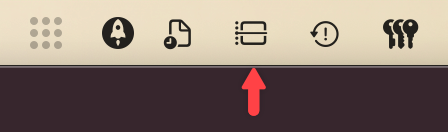
The arrow points to the Nunc menu bar icon Select Plugins → RSS Reader → Settings.
The RSS Plugin Settings window will open.
2. Add Your First RSS Feed
Section titled “2. Add Your First RSS Feed”- In the RSS Plugin Settings window, click the + button (top-right).
- Choose Add Feed.
- Enter an RSS feed URL in the dialog. For example:
https://news.ycombinator.com/rss(Hacker News). - Click Add.
- Nunc will fetch and preview the feed. You can optionally edit the title, description, or color.
- Click Confirm to add the feed.
3. View RSS Events
Section titled “3. View RSS Events”After adding a feed, today’s articles appear on the display surface you chose in Advanced Settings: screen-edge Timeline bubbles, or the Desktop Event Wall. On the timeline, move your cursor to the screen edge to open the sidebar and see today’s RSS news alongside your calendar and reminders.